Graphical Views (Workflows etc..)
File -> Customisation Configuration -> Graphical Views
Workflows are user-defined graphical representations of Operational Activities, Training Guides, Installations Guides, KPIs, etc. The Workflow itself can include interaction with Ostendo such that clicking on a Graphical object taking the User directly to a Screen, Report, or View in Ostendo. Additionally, the object can be linked to Custom Menu Scripts that can perform Customised Activities.
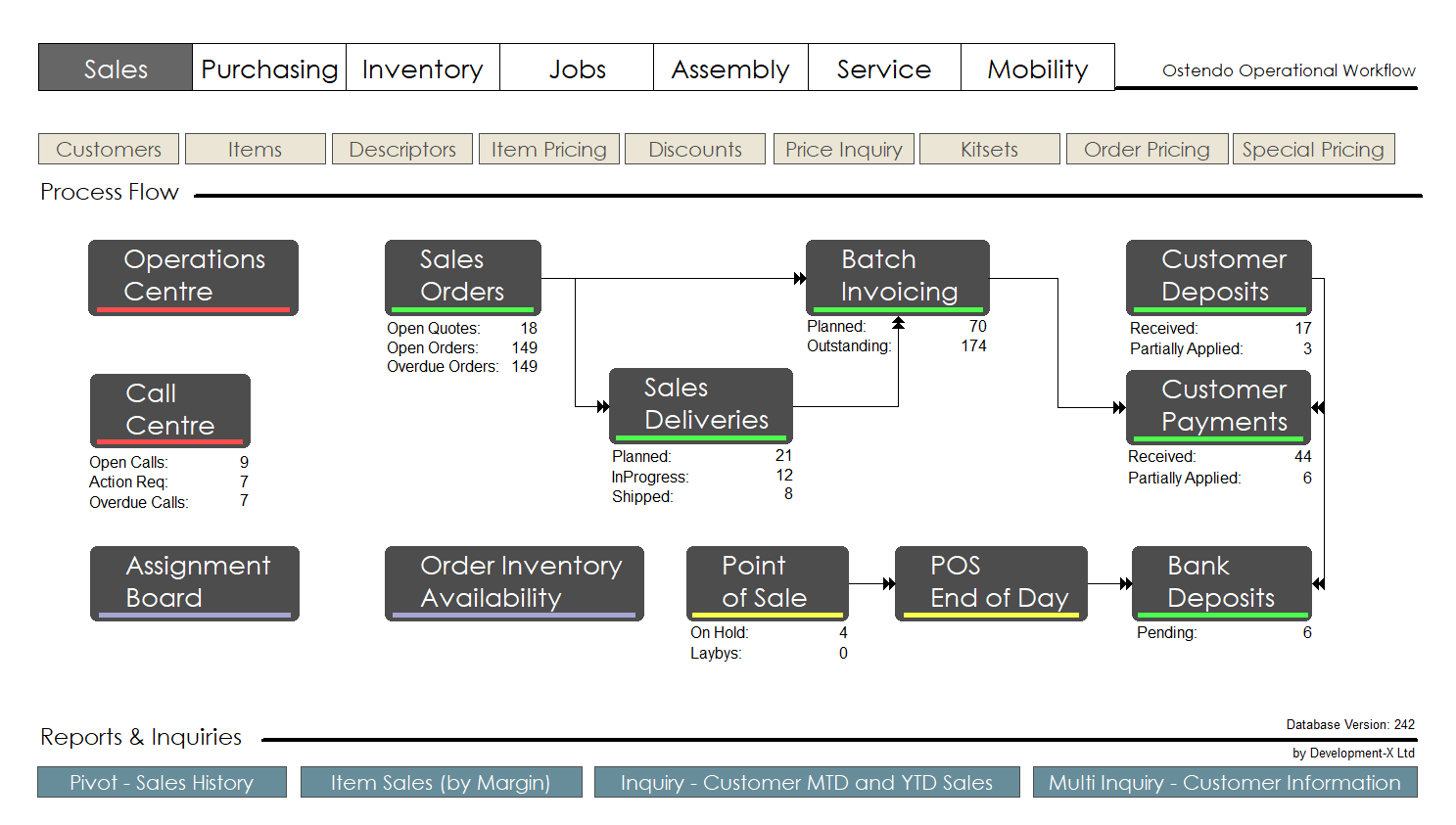
Below is an example of what a Workflow lookup like. Each button is assigned to a respective option or module and therefore behaves simply as a shortcut.
Sales Workflow Example:
Initial Loading and Subsequent Refreshing of Workflow Stats
Workflows not only act as shortcuts, but can also be configured to retrieve data from the database (for example, counts of Open Sales Orders, Quotes, etc.). In remote server environments, the retrieval of this data can introduce latency (the time taken between a user action and the system response).
To reduce latency and decrease launch times (the time taken to initially connect to the database after logging in), we have amended the loading and refreshing behaviour of Workflows.
By default, if a user account is configured to display Workflows, once the user logs into Ostendo the initial Workflow screen will appear blank. The Workflow can then be loaded manually by pressing the Refresh Workflow toolbar button or by pressing F5.

Enabling Auto Refresh By User:
There may be some situations where you want specific users to have automatic refreshing of Workflow statistics enabled. This can be achieved by amending the User Security Options for that user and enabling the Auto Refresh Workflow option.
|
|
Turning this User setting on may adversely affect latency and initial launch time within Ostendo and put additional load on the server |


|
|
The user will still need to initially press F5 to load the workflow, however from that point on whilst they are within that workflow, Auto Refreshing of Stats will automatically take place, based upon the Auto Refresh interval set within the Workflow itself. |

All Graphical Views are stored within the database itself. Editing of these occurs in another application outside on a local machine and are then re-imported back into the database.
A separate Graphical Designer application is available for the User to create the Workflows. The option for a User to see Workflows is defined against the User’s Security and Options record. (See File> System Configuration> User Security and Options).
Once linked to a User the Workflow will be available for viewing on the User’s Desktop where the following facilities are available:
Right Mouse on an Object
Assign Function: If this is selected then you can select any Menu Item (For example: Selecting Sales ->Settings -> Customer Types) and that selection will be linked to this Object. If you now click on the Object the linked screen will be presented.
You may link any Screen, Report, View or Custom Menu Script (available to the User via User Security settings) to an Object
Object ID: This is available for the Advanced User who may wish to use scripting to activate functions within it. For example: The object could simply be a KPI Text in which the KPI variable is calculated and amended within the script by referencing the Object ID.
Link to Another Workflow: A panel will appear where you can point this button to another Workflow. Subsequently, whenever this object is selected the linked workflow will replace the currently viewed Workflow
Right Mouse away from an Object
Move/Resize: With this selected you have the facility to move and resize any object on the Workflow to suit your requirements. (NB: This is not user specific and will amend the same Workflow for all Users.)
Initial Migration Of Graphical Views To Continuum
- When initially migrating to this version of Ostendo from a previous version, you may bulk upload existing Graphical Views from their individual file form.
Importing & Exporting Views (Post Migration to Continuum)
- Import: Existing Graphical Views can be imported from their traditional .dat file format into Ostendo.
- Export: Views stored in the database can be exported back out to .dat format.
This allows you to:
- Export a View from the database
- Modify it externally in the Graphical Designer utility (on a local machine)
- Re-import the updated version back into the database
Graphical View Changes
- Existing Views: Must be modified offline → Export → Modify → Import
- New Views: Should be developed offline and then imported into the database
This approach ensures that all Graphical Views are centrally stored in the database while still allowing external design and modification through the Graphical Designer utility.
Importing a new Graphical View (eg: Workflow):
File -> Customisation Configuration -> Graphical Views
- Press the Add Button

- A Windows 'Open file' dialog box will appear allowing you to browse directly to the .dat file on your local machine. Select the file and 'Open'
- From the Detail screen, Ensure the "View Type" is correct and type in a Workflow Name and Description and Save the record
- The Graphical view is now embedded in the database and is available as normal eg: ready for linking to a User account.
Exporting an Existing Graphical View (eg: Workflow):
File -> Customisation Configuration -> Graphical Views
- Select the View you wish to Export and click on the Detail Tab
- Press the Export Button

- A Windows 'Save As' file' dialog box will appear allowing you to browse to a location on you local machine. Press the Save button
- A copy of the .dat file has now been saved to your local machine ready for editing using the Ostendo Graphical Designer utility.